LinkedIn Account Restricted: Solutions and How to Fix It Fast
Jen D
February 17, 2026
•
5 min read
📑
Table of Contents
Loading...
Waking up to find your LinkedIn account restricted feels like losing your professional identity overnight. Your network, your content, your connections, suddenly inaccessible.
But here's what most people don't realize: the vast majority of LinkedIn restrictions are temporary and fixable, often within 24 to 72 hours if you follow the right steps.
Whether you're locked out completely or facing limited features, this guide walks you through exactly what's happening, why it happened, and how to recover your account as quickly as possible.
What Does "LinkedIn Account Restricted" Actually Mean?
When LinkedIn restricts your account, the platform has detected activity that appears to violate its terms of service or looks automated and suspicious. This triggers a safety measure while LinkedIn reviews your account.
Depending on the severity, a restriction can mean:
You can browse but cannot send connection requests
You can read messages but cannot send new ones
You can view your profile but cannot post or comment
You're completely locked out of your account
The key distinction: a restriction is not a permanent ban. It's LinkedIn's way of pressing pause while they investigate, or while they wait for you to verify your identity.
3 Types of LinkedIn Restrictions
Understanding which type of restriction you're facing determines your recovery path.
1. Identity Verification Restriction
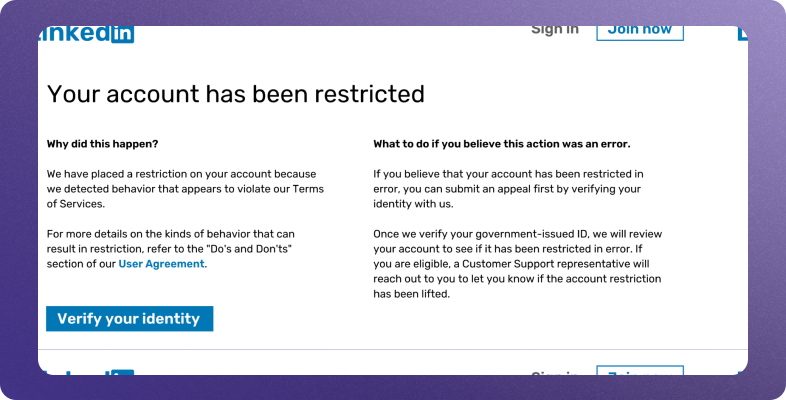
What it is: LinkedIn asks you to verify you're a real person by submitting government-issued ID.
Duration: No time limit, it lifts once you successfully verify.
Common triggers:
New account with rapid activity
Activity patterns that look automated
Profile information that seems incomplete or inconsistent
Multiple failed login attempts or suspicious login locations
2. Temporary Activity Restriction
What it is: LinkedIn limits specific features for a set period.
Duration: Usually 24 hours to 7 days.
Common triggers:
Sending too many connection requests
High volume of messages in short time
Excessive profile views
Content flagged by users
3. Permanent Account Suspension
What it is: Complete and indefinite loss of account access.
!
Suspicious login locations or multiple failed attempts
✅ How to Resolve
Submit your government-issued ID through LinkedIn's verification process. Ensure your profile name exactly matches your ID. Processing typically takes 24-48 hours.
⏱️
Temporary Activity Restriction
Specific features are limited for a set period
Time-Limited
Duration
24 hours to 7 days
Account Access
Partial (some features blocked)
Common Triggers
!
Sending too many connection requests (over 100-200/week)
!
High volume of messages in a short time
!
Excessive profile views (scraping behavior)
!
Content flagged or reported by other users
✅ How to Resolve
Stop all outreach activity immediately. Disconnect any automation tools. Wait for the restriction period to end, then resume activity at a slower pace (15-20 requests/day max).
🚫
Permanent Account Suspension
Complete and indefinite loss of account access
Critical
Duration
Indefinite (appeal required)
Account Access
Fully locked out
Common Triggers
!
Repeated policy violations after multiple warnings
!
Creating new accounts to bypass previous restrictions
✅ How to Resolve
Submit a formal appeal through LinkedIn's Help Center. Be professional, acknowledge the issue, and demonstrate commitment to following guidelines. Response time: 3-7+ business days. Success is not guaranteed.
Type
Duration
Access Level
Main Triggers
Resolution
🪪 Identity Verification
Until verified (24-48h)
Limited/Locked
New account activity, automation patterns, suspicious logins
Submit government ID
⏱️ Temporary Activity
24 hours - 7 days
Partial
Too many requests, excessive messaging, flagged content
Wait + reduce activity
🚫 Permanent Suspension
Indefinite
Fully locked
Repeated violations, egregious behavior, ban evasion
Formal appeal (no guarantee)
How to Check if Your Account is Restricted
Not sure if LinkedIn has restricted your account? Here are the telltale signs:
Sign 1: You Received a Notification
LinkedIn typically sends an email or displays an on-screen message when they restrict an account. Check your inbox for subject lines like:
"Action required on your LinkedIn account"
"Your account has been restricted"
"Verify your identity to continue using LinkedIn"
Sign 2: Features Aren't Working
If you can log in but certain actions fail, you may have a partial restriction:
Connection request button is grayed out or returns an error
Messages won't send
Posts fail to publish
Profile edits don't save
Sign 3: You're Completely Locked Out
If you cannot access your account at all and see a restriction message at login, LinkedIn has applied a full restriction pending verification or review.
Sign 4: The "I Don't Know This Person" Feedback Loop
If multiple people have clicked "I don't know this person" when declining your connection requests, LinkedIn may have quietly restricted your outreach capabilities—even without sending you a notification.
🚨
7 Reasons LinkedIn Restricts Accounts
Avoid these triggers to keep your LinkedIn account safe. Some are obvious, others catch even careful users by surprise.
1
📨
Sending Too Many Connection Requests
Sending more than 100-200 connection requests per week or 50+ in a single day triggers LinkedIn's spam detection and can get your account restricted.
📅 Weekly limit: 100-200 max⏰ Daily safe: 20-25
Common Mistakes
Sending all weekly requests in one day
Using automation to blast connection requests
Not spacing requests throughout the day
Ignoring the weekly reset cycle
Very High
2
📉
Low Connection Acceptance Rate
If most people ignore or decline your LinkedIn connection requests, the algorithm flags you as a spammer—even if you're under the weekly limit.
✅ Target: 30%+ acceptance🚫 Risky: Below 20%
Common Mistakes
Sending generic, non-personalized requests
Connecting with people outside your industry
Not withdrawing stale pending requests
Receiving "I don't know this person" clicks
High
3
🤖
Using LinkedIn Automation Tools
Browser extensions and third-party tools that automate LinkedIn activity are explicitly prohibited and can result in immediate account restriction or permanent ban.
⚠️ Chrome extensions⚠️ Scraping tools
High-Risk Activities
Auto-sending connection requests
Scraping profile data at scale
Tools that inject code into LinkedIn's interface
Running multiple automation tools simultaneously
Very High
4
👀
Viewing Too Many LinkedIn Profiles
Rapidly browsing hundreds of profiles triggers LinkedIn's scraping detection algorithms and can lead to temporary account restrictions.
🆓 Free: ~500/day💎 Premium: ~2,000/day
Common Mistakes
Using "Open in new tab" on dozens of profiles
Sudden spike after being inactive
Browsing systematically through search results
Viewing profiles much faster than human pace
Medium
5
📝
LinkedIn Content Policy Violations
Posts, articles, or messages that violate LinkedIn's Professional Community Policies can trigger content restrictions or full account suspension.
🚫 Misinformation🚫 Spam/promotional
Content That Gets Flagged
Misleading claims or misinformation
Overly promotional or salesy posts
Content reported as offensive by users
Controversial topics that invite mass reports
Medium
6
🔐
Suspicious LinkedIn Login Activity
Unusual login patterns can trigger security restrictions as LinkedIn tries to protect your account from unauthorized access.
🌍 New locations🔄 VPN usage
What Triggers Security Flags
Logging in from a new device or country
Using VPNs with frequently changing IPs
Multiple failed login attempts
Sharing account credentials with others
Low-Med
7
👤
LinkedIn Profile Information Issues
LinkedIn requires authentic profiles. Inconsistent or unverifiable information can trigger identity verification checks and account restrictions.
🪪 Name mismatch📷 Fake photo
Profile Red Flags
Profile name doesn't match your government ID
Unverifiable professional designations
Stock photo or non-human profile picture
Inconsistent work history information
Low-Med
Step-by-Step: How to Recover Your Restricted LinkedIn Account
Follow this recovery checklist in order:
Step 1: Stop All Activity Immediately
The moment you notice a restriction or warning:
Stop sending connection requests
Stop messaging people
Stop viewing profiles in bulk
Disconnect any automation tools
To disconnect third-party tools:
Go to Settings & Privacy
Click "Data Privacy"
Select "Permitted Services" under "Other Applications"
Remove any suspicious or automation-related tools
Step 2: Check Your Email for LinkedIn's Explanation
LinkedIn often sends an email explaining why they've restricted your account. Look for:
Have your government-issued ID ready (passport or driver's license)
Ensure your LinkedIn profile name matches your ID exactly
Follow LinkedIn's on-screen verification process
Upload a clear, legible photo of your ID
Important: This process typically takes 24-48 hours. Don't try to create a new account while waiting—this can result in both accounts being banned.
Step 4: Use the Same Device and Browser
When attempting to recover:
Log in from the same device and location you normally use
Avoid VPNs or unusual networks
Use your regular browser with normal settings
Step 5: Follow LinkedIn's Recovery Instructions
Log into your account (if possible) and follow any on-screen recovery prompts. LinkedIn will guide you through the specific steps needed for your situation.
Step 6: Contact LinkedIn Support (If Needed)
If you cannot resolve the issue through the automated process:
Select "Account Access Issues" or "Account Restrictions"
Submit a support ticket with clear, professional language
How to Appeal a LinkedIn Restriction (With Templates)
If LinkedIn has restricted your account and you believe it's a mistake, you can appeal the decision.
Where to Submit Your Appeal
Navigate to LinkedIn's Help Center and locate the "Restricted Account" section. Select "Account Access Issues" as your topic to ensure your appeal reaches the right team.
What to Include in Your Appeal
A strong appeal is:
Professional and concise (LinkedIn support handles thousands of requests)
Specific about the problem (include dates and what you were doing)
Honest about potential violations (if applicable)
Clear about your commitment to following LinkedIn's policies going forward
📧
Use these proven appeal templates to request a review of your restricted LinkedIn account. Copy, customize, and submit to LinkedIn Support.
Template 1: LinkedIn Identity Verification Appeal
Use this template when LinkedIn has asked you to verify your identity and you've already submitted your ID but haven't regained access.
ID Submitted
✅ Already submitted government ID⏳ Waiting more than 48 hours🔒 Still locked out
I recently found my LinkedIn account restricted and was asked to verify my identity. I have submitted my government-issued ID [on DATE] but have not yet regained access.
My profile name matches my ID exactly, and I have been an active LinkedIn member since [YEAR]. I rely on LinkedIn for my professional networking and business development.
Could you please review my verification submission and restore access to my account?
Thank you for your time.
[Your Name][Your Email][LinkedIn Profile URL - if accessible]
💡 Tips for This Appeal
Include the exact date you submitted your ID verification
Mention how long you've been a LinkedIn member to establish credibility
If your profile name has changed, explain why it matches your current ID
Keep the tone professional and patient—avoid frustration
Use this template when you believe your account was restricted due to sending too many connection requests, messages, or other high-volume activity.
Activity Triggered
📨 Too many connection requests💬 High message volume🔍 Excessive profile views
Subject:Request for Account Review - Restriction Appeal
Hello LinkedIn Support,
My LinkedIn account was recently restricted. I believe this may have been triggered by [briefly explain what you think caused it—e.g., "a higher volume of connection requests than usual as I was actively networking for a job search"].
I understand LinkedIn's policies around authentic networking and commit to staying within the platform's guidelines. I have reviewed the Professional Community Policies and will ensure my activity remains compliant.
Please review my account and consider reinstating full access.
Thank you for your assistance.
[Your Name][Your Email]
💡 Tips for This Appeal
Be honest about what you were doing—LinkedIn can see your activity logs
Show you understand the rules by referencing their policies
Commit to changing your behavior going forward
If you used automation tools, disconnect them before appealing
My LinkedIn account has been restricted, and I'm unsure of the specific reason. I haven't received detailed information about what triggered this action.
I have been a LinkedIn member since [YEAR] and use the platform professionally for [brief description of use—networking, job searching, content creation, etc.].
Could you please provide more information about why my account was restricted and what steps I should take to regain access?
I'm committed to following all LinkedIn guidelines and appreciate your help resolving this issue.
[Your Name][Your Email]
💡 Tips for This Appeal
Check your email spam folder—LinkedIn may have sent an explanation
Describe your legitimate use of the platform to establish credibility
Ask specific questions to get actionable feedback
Be patient—LinkedIn support may take 3-7 business days to respond
Alternative: LinkedIn Data Protection Contact Method
If regular LinkedIn support isn't responding to your appeals, this alternative method can sometimes get human attention on stuck cases.
Last Resort
⏰ No response after 7+ days🔄 Multiple appeals ignored🆘 Stuck in verification loop
🛡️ Use LinkedIn's Data Protection Officer Contact
If regular customer support isn't responding, an alternative route is to use LinkedIn's Data Protection Officer contact form. This is intended for privacy and data requests, but it can get a human's attention on your case when standard support channels have failed.
Subject:Data Access Request - Account Restricted Without Resolution
Hello LinkedIn Data Protection Team,
I am writing regarding my LinkedIn account which has been restricted since [DATE]. I have attempted to resolve this through standard support channels but have not received a response after [NUMBER] days.
Under data protection regulations, I am requesting:
1. Information about why my account was restricted
2. Access to my account data
3. A review of my account restriction status
My account details:
• Email: [Your Email]
• Profile URL: [LinkedIn Profile URL]
• Previous support case number (if any): [Case Number]
I would appreciate your assistance in resolving this matter.
[Your Full Legal Name][Your Email][Your Phone Number]
💡 Tips for This Method
Only use this after standard support has failed (wait at least 7 days)
Reference any previous case numbers or support tickets
Be factual and professional—this goes to a different team
Include all relevant details to avoid back-and-forth
This method works especially well for EU residents (GDPR rights)
Alternative: Use LinkedIn's Data Protection Contact
If regular support isn't responding, some users have found success submitting requests through LinkedIn's Data Protection Officer contact form. This is intended for privacy/data requests but can sometimes get human attention on stuck cases.
⏱️
How Long Do LinkedIn Restrictions Last?
LinkedIn restriction durations vary based on the type of violation and your account history. Here's what to expect for each restriction type.
⚡
First-Time Activity Warning
A brief restriction that automatically lifts once you stop the behavior that triggered it. This is LinkedIn's gentlest warning.
Duration1-24 hours
Severity LevelLow
📋 What Affects Duration
Automatically lifts if you stop the triggering behavior. Continuing the activity can escalate to a longer restriction.
🎯 Common Triggers
Sending connection requests too quickly, viewing too many profiles in a short time, or minor content flags.
✅ What To Do
Stop all outreach activity immediately
Wait a few hours before resuming normal use
When you return, slow down your activity pace
No appeal needed—this resolves automatically
⏸️
Temporary Activity Restriction
A more serious restriction where specific features are disabled for a set period. Duration depends on violation severity.
Duration24 hours to 7 days
Severity LevelMedium
📋 What Affects Duration
Severity of the violation and your account history. First-time offenders typically get shorter restrictions (24-48 hours).
🎯 Common Triggers
Exceeding weekly connection limits, spam-like messaging patterns, content policy violations, or using automation tools.
✅ What To Do
Disconnect any third-party tools or browser extensions
Wait for the restriction period to end—don't try to circumvent it
Review LinkedIn's Professional Community Policies
Resume activity slowly (10-15 requests/day) after restriction lifts
🪪
Identity Verification Hold
Account access is paused until you verify your identity with a government-issued ID. Not time-limited—depends on your action.
DurationUntil verified
Severity LevelMedium-High
📋 What Affects Duration
How quickly you submit your ID and LinkedIn's verification processing time. Typically 24-48 hours after submission.
🎯 Common Triggers
New account with rapid activity, profile information inconsistencies, activity patterns that appear automated, or security flags.
✅ What To Do
Submit your government-issued ID immediately (passport or driver's license)
Ensure your profile name matches your ID exactly
Use a clear, legible photo of your ID
Wait 24-48 hours for processing—don't create a new account
📝
Appeal-Based Restriction
Your account requires manual review by LinkedIn's support team. Duration depends on their backlog and case complexity.
Duration3-7 business days
Severity LevelHigh
📋 What Affects Duration
LinkedIn's review backlog and the complexity of your case. Simple cases resolve in 3-5 days; complex cases may take longer.
🎯 Common Triggers
Repeated policy violations, content that requires human review, disputed restrictions, or cases that don't fit standard categories.
✅ What To Do
Submit a clear, professional appeal through LinkedIn Help Center
Include relevant details (dates, case numbers, what happened)
Be patient—don't submit multiple appeals (this can slow things down)
Check your email regularly for LinkedIn's response
🚫
Permanent Account Suspension
Complete and indefinite loss of account access. Recovery requires a successful appeal, but there's no guarantee.
DurationIndefinite
Severity LevelCritical
📋 What Affects Duration
Requires a successful appeal—no guarantee of recovery. Some permanent suspensions cannot be overturned regardless of appeal.
🎯 Common Triggers
Repeated violations after warnings, egregious policy violations (harassment, fraud), creating new accounts to evade bans.
⚠️ What To Do
Submit a formal appeal (be professional, acknowledge mistakes)
Do NOT create a new account—this will make things worse
If appeal is denied, you may try the Data Protection contact method
Consider this a last resort—focus on prevention in the future
Restriction Type
Typical Duration
What Affects It
First-time activity warning
1-24 hours
Automatically lifts if you stop the triggering behavior
Temporary activity restriction
24 hours - 7 days
Severity of violation and your account history
Identity verification hold
Until verified
How quickly you submit ID and verification processing time (24-48 hours typical)
Appeal-based restriction
3-7 business days
LinkedIn's review backlog and complexity of your case
Permanent suspension
Indefinite
Requires successful appeal (no guarantee)
Important note: LinkedIn's enforcement can feel inconsistent. Some users report quick resolutions while others wait weeks. Persistence and professionalism in your communication help.
8 Ways to Prevent Future LinkedIn Restrictions
Once you've recovered your account—or better yet, before you ever face a restriction—follow these best practices.
1. Optimize Your Profile for Higher Acceptance Rates
A complete, professional profile makes people more likely to accept your connection requests:
Add a professional headshot (not a logo, not a group photo)
Write a compelling headline that explains what you do
Complete your work experience and education sections
Add a personalized summary/about section
2. Personalize Every Connection Request
Generic requests get ignored, and ignored requests hurt your acceptance rate.
Instead of the default "I'd like to connect," write something like:
"Hi [Name], I noticed your work in [specific detail]. I'm also working in [related area] and would love to connect and exchange ideas."
3. Respect LinkedIn's Connection Request Limits
Safe daily limits:
New accounts: 10-15 requests/day
Established accounts: 20-25 requests/day
Never send more than 50 in a single day
Weekly limits:
Most accounts: Stay under 80-100/week
High SSI accounts: Can push toward 150-200/week
4. Withdraw Pending Requests Regularly
Requests that sit unanswered for weeks hurt your metrics. Set a calendar reminder to withdraw pending invitations that are older than 2-3 weeks.
To withdraw pending invitations:
Go to My Network
Click "Manage" in the invitations section
Select "Sent"
Withdraw stale invitations
5. Warm Up New or Dormant Accounts
If you've just created an account or haven't used LinkedIn actively in months, don't jump straight into heavy outreach.
Warm-up approach:
Week 1: Engage with content (like, comment) but don't send connection requests
Choose cloud-based tools with dedicated IPs over Chrome extensions
Use tools with built-in safety limits and warm-up features
Never run multiple automation tools simultaneously
Be prepared to accept the risk—no tool is 100% safe
7. Keep Your Content Professional
Avoid content that could trigger LinkedIn's policies or user reports:
Don't spread misinformation
Avoid overly promotional or "salesy" posts
Stay away from controversial topics that invite reports
Don't engage in comment spam
8. Monitor Your Activity Patterns
Be aware of sudden spikes in your LinkedIn activity. If you normally send 5 connection requests per day and suddenly send 50, LinkedIn notices.
Consistency signals authentic behavior. Spikes signal automation or suspicious activity.
Real Recovery Stories: What Actually Works
Understanding how others have recovered can help set realistic expectations.
The Verification Loop
A user in Europe experienced four consecutive restrictions, each time being asked to verify identity. Despite submitting ID, the restriction would lift temporarily and then reapply within days.
What eventually worked: Ensuring the profile name exactly matched the government ID, removing any special characters or professional designations from the name field, and waiting a full month before resuming any outreach activity.
The Hacked Account
A professional's long-standing account was compromised. The hacker sent spam messages, triggering an immediate restriction for policy violations.
What eventually worked: Resetting the password, completing identity verification, explaining the situation to LinkedIn support (with evidence of the hack), and disconnecting all third-party applications.
The New Account Trap
A recent college graduate created a LinkedIn account and immediately sent 40+ connection requests to classmates and professors.
What eventually worked: Completing identity verification, waiting out the initial restriction period, then starting over slowly with highly personalized requests to people who would recognize them.

.png)



.svg)