How to Manage Multiple LinkedIn Accounts from 1 Device (2026 Guide)

.webp)
Whether you manage LinkedIn accounts for multiple clients, run outreach campaigns across different personas, or simply need to keep your personal and professional profiles separate — the challenge is always the same: how do you manage multiple LinkedIn accounts from a single device without getting them suspended?
Logging into two LinkedIn accounts in the same browser is a recipe for trouble. LinkedIn's detection system reads dozens of signals — your IP address, browser fingerprint, cookies, and behavioral patterns — and if two accounts share any of these, they get flagged as the same person running multiple profiles, which is against LinkedIn's Terms of Service.
The good news? There is a clean, reliable solution used by growth hackers, social media managers, and sales teams worldwide: combining an antidetect browser (Dolphin Anty) with dedicated residential proxies (Proxy Empire). This guide walks you through the entire setup, step by step.
Note: This guide assumes you already have two or more existing LinkedIn accounts. If you're creating new accounts, warm them up gradually — start with small activity levels and increase over several weeks before running any automation.
Why LinkedIn Flags Multiple Accounts — And How to Avoid It
Before diving into the setup, it's worth understanding exactly what LinkedIn looks for. The platform uses a combination of server-side and client-side signals to detect whether multiple accounts are being operated by the same person:
- IP address: The most obvious signal. If accounts A and B log in from the same IP, LinkedIn connects them immediately.
- Browser fingerprint: A unique identifier made up of your User Agent, screen resolution, installed fonts, WebGL renderer, timezone, and dozens of other browser characteristics.
- Cookies and local storage: Remnants left by previous sessions that can reveal cross-account links.
- Behavioral patterns: Logging in at the same hours, using the same connection sequences, or performing identical actions across multiple accounts.
The solution to each of these is simple in principle: give each account its own isolated environment with a unique IP, a unique fingerprint, and completely separate session data. That is exactly what Dolphin Anty + Proxy Empire achieves.
Tools You'll Need
You'll need one proxy per LinkedIn account. Both tools offer free trials or starter plans, so you can test the setup at low cost before scaling.
Step 1 — Buy Proxies on Proxy Empire
Head to proxyempire.io and create a free account. Navigate to the Proxy Plans section and choose either Residential Proxies or Mobile Proxies — both work well for LinkedIn. Residential proxies are generally the most cost-effective option.
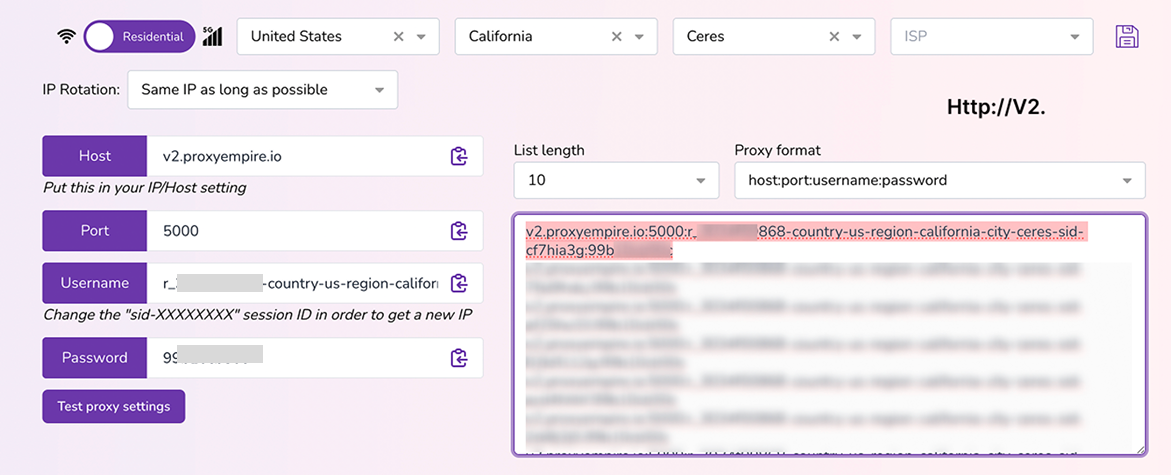
Purchase residential proxies, 10Gb are enough and assign one proxy per LinkedIn account you intend to manage. For example, if you're running 5 accounts, you need 5 proxies — each assigned to one account exclusively.
Once your order is confirmed, retrieve your credentials from the dashboard. For each proxy, you'll have:
- Host / IP address
- Port number
- Username and Password
- Protocol (use SOCKS5 when available — it's more reliable than HTTP)
Pro tip: Choose proxies located in the same country as the LinkedIn account owner. An account created in France should always connect from a French IP. Geographic inconsistency is one of the most common triggers for security reviews.
Keep these credentials handy — you'll enter them into Dolphin Anty in Step 4.
Step 2 — Download & Install Dolphin Anty
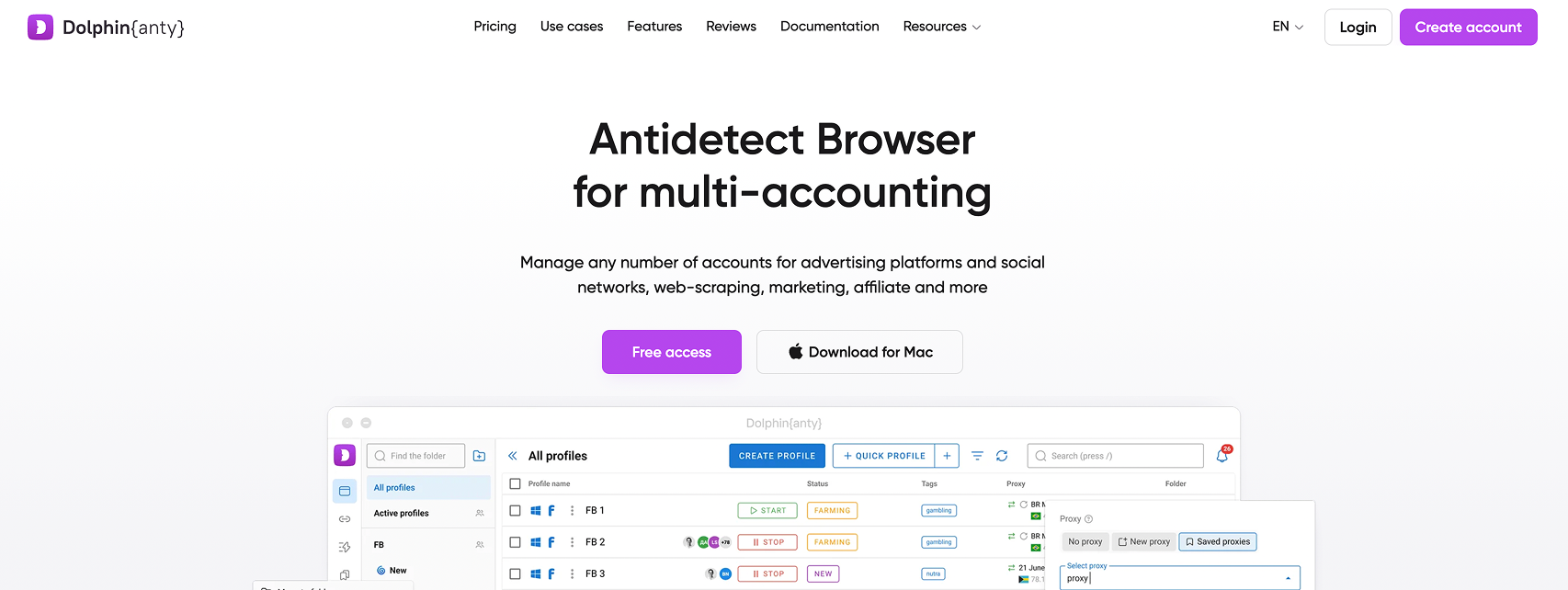
Go to https://dolphin-anty.net/ and download the Dolphin{anty} desktop application. It is available for both Windows and macOS.
Install the app and launch it. Create a free account or log in if you already have one. The free tier supports up to 10 browser profiles simultaneously, which is a solid starting point.
Dolphin{anty} is what's called an antidetect browser — a Chromium-based browser that replaces your real fingerprint with a synthetic one for each profile, making each profile look like a completely different device to any website or platform.
Step 3 — Create a Browser Profile for Each LinkedIn Account
In the Dolphin{anty} dashboard, click "Create profile". You'll do this once for each LinkedIn account you manage.
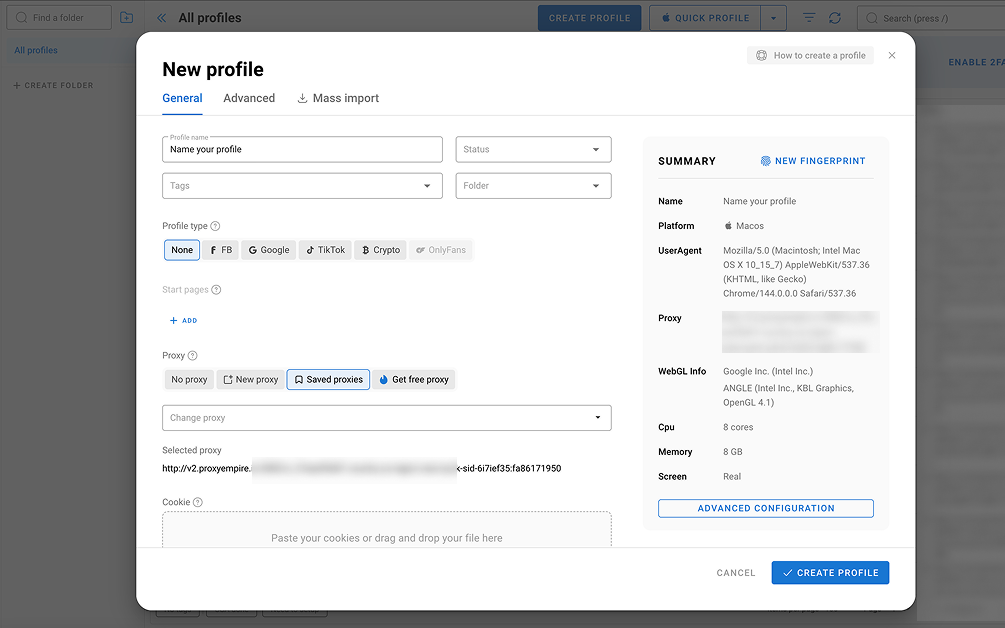
- Name: Use something descriptive, such as LinkedIn – John Doe or LinkedIn – Client A. Clear naming saves a lot of confusion when managing 5+ profiles.
- Browser fingerprint: Leave this on Automatic. Dolphin{anty} will generate a unique, realistic fingerprint including User Agent, screen resolution, installed fonts, WebGL hash, timezone, and more.
- Operating system: Ideally, set it to match the geographic profile of your proxy. A US-based account should appear as a typical US Windows or macOS user.
Do not assign the proxy yet — we'll do that in the next step.
Step 4 — Assign One Proxy per Profile
This is the most critical step. Still in the profile creation window (or by editing an existing profile), scroll down to the "Proxy" section.
Click "Add proxy" and fill in the credentials from Proxy Empire:
- Type: SOCKS5 (recommended) or HTTP
- Host: your proxy IP or hostname
- Port: the proxy port number
- Login / Password: your proxy credentials
(Copy paste the URL given by proxy empire, the field will be completed automatically)
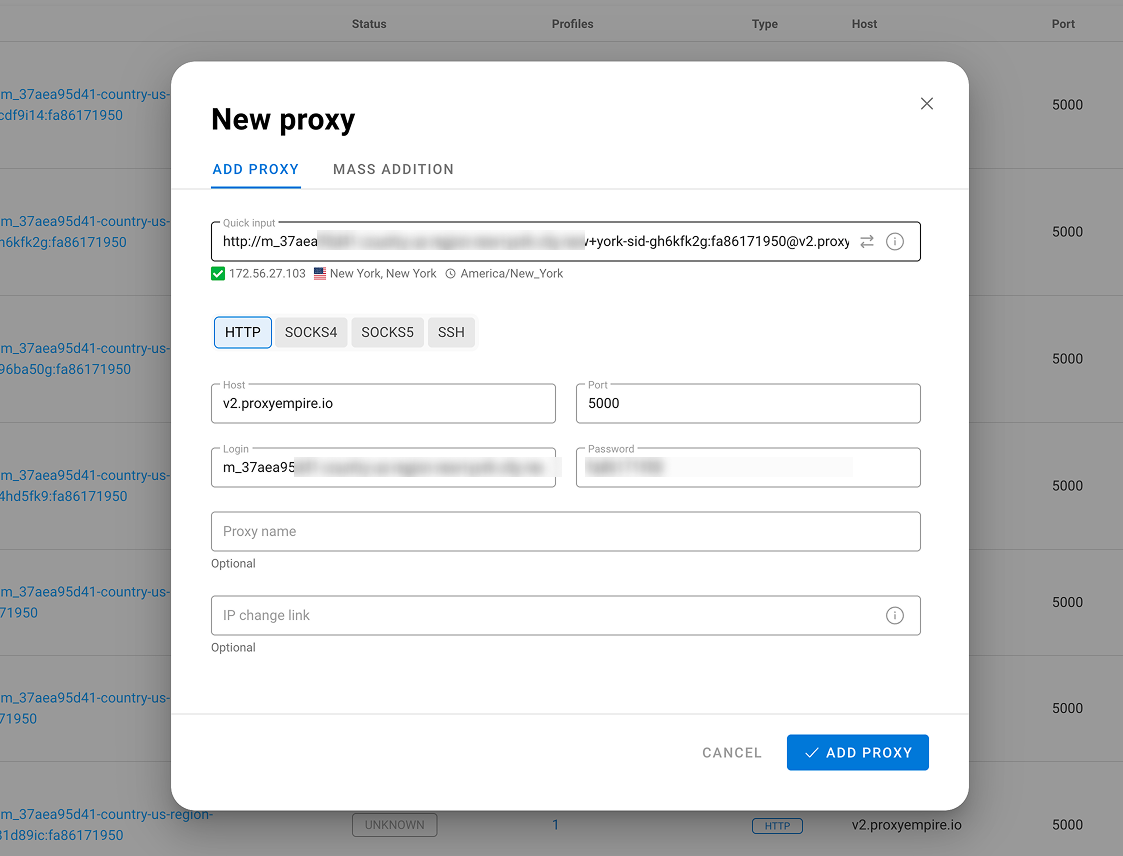
Click "Check proxy". Dolphin{anty} will test the connection and display the detected IP address and country. Verify that the location matches what you purchased from Proxy Empire.
Save the profile. Then repeat for every other LinkedIn account, using a different proxy each time. Never share a proxy between two profiles.
Warning: Use sticky (static) proxies, not rotating ones. Rotating proxies change your IP on every request, which looks highly suspicious on LinkedIn. You want a consistent IP address that stays the same for the duration of each session.
Step 5 — Log Into LinkedIn in Each Profile
Now it's time to connect each browser profile to its corresponding LinkedIn account.
In the Dolphin{anty} dashboard, find your first profile and click "Open". A separate Chromium browser window will launch — with its unique fingerprint and proxy already active.
Navigate to linkedin.com and log into the corresponding LinkedIn account.
Once logged in, simply close the browser window (do not log out). Dolphin{anty} saves the entire session — cookies, local storage, and all — within the profile.
Next time you open that profile, you'll be automatically logged into the right LinkedIn account, coming from the same IP address. Repeat this process for each profile.
Step 6 — Your Daily Workflow
Once the setup is complete, your daily routine is straightforward:
- Open Dolphin{anty}.
- Click "Open" on the profile you want to work with.
- Do your LinkedIn activity — browsing, messaging, posting, prospecting.
- Close the browser window when done (don't log out).
- Switch to another profile and repeat.
You can run multiple profiles simultaneously — each will open in its own isolated browser window, fully independent of the others.
Best Practices to Stay Safe on LinkedIn
The technical setup is only half the equation. LinkedIn's algorithm also watches for behavioral anomalies. Here are the key habits to adopt:
One proxy per account, always. Never reassign a proxy from one profile to another. Consistency is everything.
Match your proxy to the account's location. A French account should always connect from a French IP. Sudden country changes trigger manual reviews.
Warm up new accounts gradually. Don't send 100 connection requests on day one. Build activity slowly over several weeks before scaling up.
Keep proxy subscriptions active. If a proxy expires and you log in from a new IP, LinkedIn may flag the account for suspicious location activity.
Never cross profiles. Don't visit Account B's LinkedIn profile while logged into Account A. Full isolation is the goal.
Vary your session times. Logging into all accounts at exactly the same hour every day looks robotic. Vary your routines slightly.
Important: Even with a perfect technical setup, LinkedIn can restrict or ban accounts for behavioral violations — excessive connection requests, spammy messages, or rapid unnatural growth. This setup protects your accounts from being technically linked, but it is not a license to abuse the platform.
Summary: The Full Setup at a Glance
Frequently Asked Questions
.png)




.svg)